How to Organize Tasks and Calendar Together

Flick Team

Learn how to organize tasks and calendar together with a simple system that helps you plan realistically and stay on top of deadlines.

If your tasks live in one app and your schedule lives in another, planning usually breaks somewhere in the middle.


You know what you need to do. You know when your meetings, classes, or commitments happen. But turning that into a realistic week is the hard part.


That is why so many people end up with a full task list, a full calendar, and no clear plan for how the work will actually get done. The fix is not a more complicated productivity system. It is a better connection between tasks and time.


This guide will show you how to organize tasks and calendar together in a way that feels practical, visual, and sustainable. Whether you are a student juggling assignments, a busy professional managing deadlines, or just trying to stay on top of life, the goal is the same: make your plan reflect reality.


Why separate task lists and calendars often break down


A to-do list answers one question: what needs to get done?

A calendar answers a different one: when does life happen?

The problem is that most people need both answers at the same time.


A list by itself can get long very quickly. It does not show whether you actually have room to finish everything. A calendar by itself shows your appointments and events, but not the work that needs to happen between them.


That gap creates familiar problems:

  • important tasks stay buried in a list

  • deadlines sneak up even when they were written down

  • you underestimate how much time work needs

  • your week feels busy, but not productive

  • you spend more time rearranging plans than actually doing them


When you organize tasks and schedule together, you stop treating tasks as abstract obligations and start treating them as part of your real week.


What it really means to organize tasks and schedule in one system

Organizing tasks and calendar together does not mean putting every single checkbox directly on your calendar.

It means building one planning workflow where:

  • tasks are easy to capture

  • deadlines are visible

  • events and commitments are clear

  • important work gets assigned realistic time

  • your plan can adjust when life changes


A good task calendar workflow helps you answer four questions quickly:

  1. What do I need to do?

  2. What absolutely has to happen at a specific time?

  3. What can I work on during my available time?

  4. What matters most this week?


That is the foundation of a planning system that feels calm instead of chaotic.


A simple system to organize tasks and calendar together

You do not need a complicated setup. You need a system that is easy enough to use every day. Here is a simple approach:

Step 1: Capture everything in one trusted place

The first rule is simple: stop scattering tasks.

If some tasks are in your notes app, some in messages, some in your head, and some in sticky notes, your planning will always feel heavier than it should.


Use one main place to quickly capture tasks such as:

  • assignments

  • work follow-ups / homeork

  • errands

  • personal reminders

  • ideas that need action later


The faster it is to enter a task, the more likely you are to keep your system current.

A good daily planning app should make this step almost frictionless. If adding a task takes too long, you will avoid using it when you are busy.

Step 2: Separate tasks by type

Not all tasks should be planned the same way.

A useful filter is to divide what you captured into these groups:

Type

What it includes

Best place

Fixed events

Meetings, classes, appointments, calls

Calendar

Hard deadlines

Essay due Friday, invoice due Tuesday, project submission

Task with due date, visible near calendar

Flexible work

Study chapter 4, draft slides, review proposal

Task list that can be scheduled into open time

Quick actions

Reply to email, send file, book haircut

Task list or small block in calendar

This step matters because people often confuse deadlines with work sessions.

For example, “submit report Friday at 5 PM” is not the same as “work on report.” One is the endpoint. The other needs actual time reserved before that endpoint.


Step 3: Put time-sensitive items on the calendar first

Your calendar should first reflect the things that are fixed or time-bound. Start with:

  • meetings

  • classes

  • appointments

  • travel

  • personal commitments

  • exams

  • major deadlines

This creates the structure of your week.


Once those are visible, you can stop planning in a vacuum and see what free times actually exist.

This is where many planning systems fail. People make a list of 20 tasks for Tuesday without noticing they already have six hours of classes, two meetings, and a commute.


Step 4: Plan task blocks around real life

Now look at your important flexible work and decide what needs dedicated time.

These are the tasks that benefit from being placed into your calendar, such as:

  • writing an assignment

  • preparing a presentation

  • deep work on a project

  • studying for an exam

  • catching up on admin tasks

You do not need to schedule every tiny action. Focus on the work that is important, time-consuming, or deadline-related.


A simple way to plan tasks on calendar is:

  • choose 1 to 3 important tasks for the day

  • estimate roughly how long each one needs

  • place them into open slots around your fixed commitments

  • leave some buffer time for delays and overflow

That turns intention into a workable plan.


Step 5: Review daily and weekly

No system stays useful without review.

A light daily review helps you:

  • check what got done

  • move unfinished work

  • prepare for tomorrow

  • spot deadline risks early


A weekly planning system helps you:

  • see upcoming deadlines and events

  • decide what matters most this week

  • assign time before the week gets crowded

  • reset after things change

This is what keeps your task calendar workflow from becoming outdated after two busy days.


Tasks vs calendar: what goes where?

A lot of planning friction comes from not knowing whether something belongs on a task list or a calendar.

This simple rule helps:

Put it as a task

Put it on the calendar

Connect both

Things you need to do but can do flexibly

Things that happen at a fixed time

Bigger tasks with real deadlines and work sessions

“Reply to professor”

“Dentist appointment at 3 PM”

“Submit paper Friday” plus “Work on paper Wednesday 7 PM”

“Buy groceries”

“Team meeting 10 AM”

“Client presentation Monday” plus prep block Thursday

“Read chapter 5”

“Lab session 2 PM”

“Exam next Tuesday” plus study blocks this week

A task list is for commitments that need action. A calendar is for commitments tied to time. The overlap is where real planning happens.


Example: a realistic task calendar workflow for a busy week

Let’s say you are a student with a part-time internship.

Your week includes:

  • classes on Monday, Wednesday, and Thursday

  • internship meetings on Tuesday and Friday

  • a research paper due Friday

  • a quiz on Thursday

  • personal errands

  • a few small admin tasks


A weak planning setup might look like this:

  • one long list of 18 tasks

  • deadlines written down, but no work time reserved

  • calendar only used for classes and meetings

  • constant feeling of being behind


A better workflow looks like this:

On Sunday evening

You review the week and note:

  • paper due Friday

  • quiz Thursday

  • internship meetings Tuesday and Friday

  • doctor appointment Wednesday

You place fixed events first

Your calendar gets:

  • classes

  • meetings

  • appointment

  • quiz time

  • paper deadline

Then you plan the work

  • Monday 7 PM: paper research

  • Tuesday 8 PM: outline paper

  • Wednesday 6 PM: quiz review

  • Thursday 7 PM: final paper edits

  • Friday 11 AM: submission check

Small tasks stay flexible

You keep quick actions as tasks:

  • reply to internship email

  • print lab notes

  • pick up prescription

  • send group project message


Now your week is not just a list of responsibilities. It is a visual plan.

That makes it much easier to see whether the week is reasonable, what needs rescheduling, and what you should focus on each day.


How a task and calendar app makes this easier

You can do this manually, but the right task and calendar app removes a lot of friction.

A useful setup helps you:

  • capture tasks quickly

  • see deadlines next to events

  • drag work into open time visually

  • adjust plans without starting over

  • review the week in one view

This is especially helpful for people who struggle with the jump from “I know what I need to do” to “I know when I am doing it.”

That is where a calendar task manager becomes more than a storage tool. It becomes a planning tool.


How Flick helps you organize tasks and calendar together

If your goal is to organize tasks and calendar together, without building a complicated system, Flick fits naturally into this workflow.

Instead of keeping tasks in one place and your schedule in another, Flick helps you bring both into one planning view. That makes it easier to:

  • capture tasks quickly

  • see what is due

  • plan tasks on calendar visually

  • build a realistic weekly plan

  • adjust your schedule when things change

This works especially well for people who want a simpler planning experience.
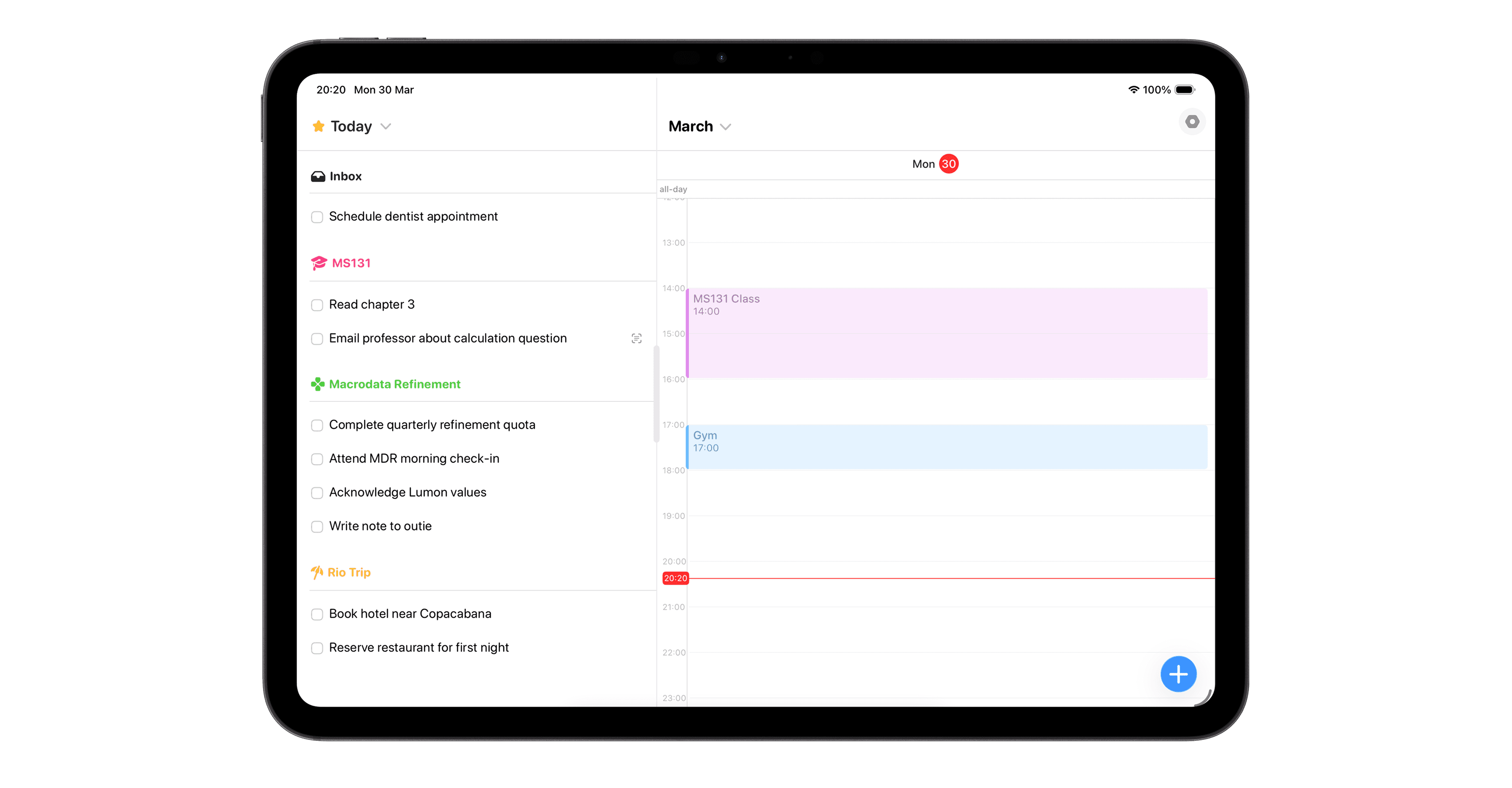
Some tools are good at storing tasks. Others are good at showing events. Flick is useful when you want to turn tasks into an actual plan without adding more friction.

If your current setup feels disconnected, cluttered, or too rigid, having tasks and calendar in one place can make weekly planning much easier.


Final takeaway

The best way to organize tasks and calendar together is not to over-plan. It is to connect your responsibilities to real time in a way you can actually maintain.


Keep one trusted place for tasks. Put fixed commitments on the calendar first. Schedule important work into the week. Review often enough to stay realistic.

That is the core of a strong task calendar workflow.


And if you want a simpler way to do it in one visual system, organize tasks and calendar in Flick.

If your tasks live in one app and your schedule lives in another, planning usually breaks somewhere in the middle.


You know what you need to do. You know when your meetings, classes, or commitments happen. But turning that into a realistic week is the hard part.


That is why so many people end up with a full task list, a full calendar, and no clear plan for how the work will actually get done. The fix is not a more complicated productivity system. It is a better connection between tasks and time.


This guide will show you how to organize tasks and calendar together in a way that feels practical, visual, and sustainable. Whether you are a student juggling assignments, a busy professional managing deadlines, or just trying to stay on top of life, the goal is the same: make your plan reflect reality.


Why separate task lists and calendars often break down


A to-do list answers one question: what needs to get done?

A calendar answers a different one: when does life happen?

The problem is that most people need both answers at the same time.


A list by itself can get long very quickly. It does not show whether you actually have room to finish everything. A calendar by itself shows your appointments and events, but not the work that needs to happen between them.


That gap creates familiar problems:

  • important tasks stay buried in a list

  • deadlines sneak up even when they were written down

  • you underestimate how much time work needs

  • your week feels busy, but not productive

  • you spend more time rearranging plans than actually doing them


When you organize tasks and schedule together, you stop treating tasks as abstract obligations and start treating them as part of your real week.


What it really means to organize tasks and schedule in one system

Organizing tasks and calendar together does not mean putting every single checkbox directly on your calendar.

It means building one planning workflow where:

  • tasks are easy to capture

  • deadlines are visible

  • events and commitments are clear

  • important work gets assigned realistic time

  • your plan can adjust when life changes


A good task calendar workflow helps you answer four questions quickly:

  1. What do I need to do?

  2. What absolutely has to happen at a specific time?

  3. What can I work on during my available time?

  4. What matters most this week?


That is the foundation of a planning system that feels calm instead of chaotic.


A simple system to organize tasks and calendar together

You do not need a complicated setup. You need a system that is easy enough to use every day. Here is a simple approach:

Step 1: Capture everything in one trusted place

The first rule is simple: stop scattering tasks.

If some tasks are in your notes app, some in messages, some in your head, and some in sticky notes, your planning will always feel heavier than it should.


Use one main place to quickly capture tasks such as:

  • assignments

  • work follow-ups / homeork

  • errands

  • personal reminders

  • ideas that need action later


The faster it is to enter a task, the more likely you are to keep your system current.

A good daily planning app should make this step almost frictionless. If adding a task takes too long, you will avoid using it when you are busy.

Step 2: Separate tasks by type

Not all tasks should be planned the same way.

A useful filter is to divide what you captured into these groups:

Type

What it includes

Best place

Fixed events

Meetings, classes, appointments, calls

Calendar

Hard deadlines

Essay due Friday, invoice due Tuesday, project submission

Task with due date, visible near calendar

Flexible work

Study chapter 4, draft slides, review proposal

Task list that can be scheduled into open time

Quick actions

Reply to email, send file, book haircut

Task list or small block in calendar

This step matters because people often confuse deadlines with work sessions.

For example, “submit report Friday at 5 PM” is not the same as “work on report.” One is the endpoint. The other needs actual time reserved before that endpoint.


Step 3: Put time-sensitive items on the calendar first

Your calendar should first reflect the things that are fixed or time-bound. Start with:

  • meetings

  • classes

  • appointments

  • travel

  • personal commitments

  • exams

  • major deadlines

This creates the structure of your week.


Once those are visible, you can stop planning in a vacuum and see what free times actually exist.

This is where many planning systems fail. People make a list of 20 tasks for Tuesday without noticing they already have six hours of classes, two meetings, and a commute.


Step 4: Plan task blocks around real life

Now look at your important flexible work and decide what needs dedicated time.

These are the tasks that benefit from being placed into your calendar, such as:

  • writing an assignment

  • preparing a presentation

  • deep work on a project

  • studying for an exam

  • catching up on admin tasks

You do not need to schedule every tiny action. Focus on the work that is important, time-consuming, or deadline-related.


A simple way to plan tasks on calendar is:

  • choose 1 to 3 important tasks for the day

  • estimate roughly how long each one needs

  • place them into open slots around your fixed commitments

  • leave some buffer time for delays and overflow

That turns intention into a workable plan.


Step 5: Review daily and weekly

No system stays useful without review.

A light daily review helps you:

  • check what got done

  • move unfinished work

  • prepare for tomorrow

  • spot deadline risks early


A weekly planning system helps you:

  • see upcoming deadlines and events

  • decide what matters most this week

  • assign time before the week gets crowded

  • reset after things change

This is what keeps your task calendar workflow from becoming outdated after two busy days.


Tasks vs calendar: what goes where?

A lot of planning friction comes from not knowing whether something belongs on a task list or a calendar.

This simple rule helps:

Put it as a task

Put it on the calendar

Connect both

Things you need to do but can do flexibly

Things that happen at a fixed time

Bigger tasks with real deadlines and work sessions

“Reply to professor”

“Dentist appointment at 3 PM”

“Submit paper Friday” plus “Work on paper Wednesday 7 PM”

“Buy groceries”

“Team meeting 10 AM”

“Client presentation Monday” plus prep block Thursday

“Read chapter 5”

“Lab session 2 PM”

“Exam next Tuesday” plus study blocks this week

A task list is for commitments that need action. A calendar is for commitments tied to time. The overlap is where real planning happens.


Example: a realistic task calendar workflow for a busy week

Let’s say you are a student with a part-time internship.

Your week includes:

  • classes on Monday, Wednesday, and Thursday

  • internship meetings on Tuesday and Friday

  • a research paper due Friday

  • a quiz on Thursday

  • personal errands

  • a few small admin tasks


A weak planning setup might look like this:

  • one long list of 18 tasks

  • deadlines written down, but no work time reserved

  • calendar only used for classes and meetings

  • constant feeling of being behind


A better workflow looks like this:

On Sunday evening

You review the week and note:

  • paper due Friday

  • quiz Thursday

  • internship meetings Tuesday and Friday

  • doctor appointment Wednesday

You place fixed events first

Your calendar gets:

  • classes

  • meetings

  • appointment

  • quiz time

  • paper deadline

Then you plan the work

  • Monday 7 PM: paper research

  • Tuesday 8 PM: outline paper

  • Wednesday 6 PM: quiz review

  • Thursday 7 PM: final paper edits

  • Friday 11 AM: submission check

Small tasks stay flexible

You keep quick actions as tasks:

  • reply to internship email

  • print lab notes

  • pick up prescription

  • send group project message


Now your week is not just a list of responsibilities. It is a visual plan.

That makes it much easier to see whether the week is reasonable, what needs rescheduling, and what you should focus on each day.


How a task and calendar app makes this easier

You can do this manually, but the right task and calendar app removes a lot of friction.

A useful setup helps you:

  • capture tasks quickly

  • see deadlines next to events

  • drag work into open time visually

  • adjust plans without starting over

  • review the week in one view

This is especially helpful for people who struggle with the jump from “I know what I need to do” to “I know when I am doing it.”

That is where a calendar task manager becomes more than a storage tool. It becomes a planning tool.


How Flick helps you organize tasks and calendar together

If your goal is to organize tasks and calendar together, without building a complicated system, Flick fits naturally into this workflow.

Instead of keeping tasks in one place and your schedule in another, Flick helps you bring both into one planning view. That makes it easier to:

  • capture tasks quickly

  • see what is due

  • plan tasks on calendar visually

  • build a realistic weekly plan

  • adjust your schedule when things change

This works especially well for people who want a simpler planning experience.

Some tools are good at storing tasks. Others are good at showing events. Flick is useful when you want to turn tasks into an actual plan without adding more friction.

If your current setup feels disconnected, cluttered, or too rigid, having tasks and calendar in one place can make weekly planning much easier.


Final takeaway

The best way to organize tasks and calendar together is not to over-plan. It is to connect your responsibilities to real time in a way you can actually maintain.


Keep one trusted place for tasks. Put fixed commitments on the calendar first. Schedule important work into the week. Review often enough to stay realistic.

That is the core of a strong task calendar workflow.


And if you want a simpler way to do it in one visual system, organize tasks and calendar in Flick.