Best Things 3 Alternatives in 2026: 5 Apps Compared
Flick Team
✦

Things 3 is beautifully focused, but it is not the right fit for every workflow. Compare five alternatives for time blocking, cross-platform access, visual planning, and deeper customization.
Things 3 remains a polished personal task manager. Its calm Today list and separation between start dates and deadlines suit people who want to manage commitments without maintaining a complicated system.
But its deliberate focus also creates clear reasons to look elsewhere. Things is limited to Apple devices. It can show calendar events above your to-dos, but it does not natively turn a task into a movable calendar block. It is also built for personal task management rather than team collaboration.
This guide compares five strong Things 3 alternatives. It is published by the Flick Team, and Flick is one of the products compared. We have linked to official product documentation, do not use affiliate links, and will be direct about where another app is a better choice.
The quick answer
Best for Apple users who want tasks and calendar together: Flick. It keeps a polished, personal workflow while letting you drag tasks directly onto your calendar and adjust their duration.
Best for cross-platform work and collaboration: Todoist. It is a stronger fit when tasks need to follow you across Apple, Android, Windows, Linux, and the web—or be shared with other people.
Best all-in-one productivity toolbox: TickTick. It combines task management with calendar views, habits, focus tools, and several prioritization views.
Best for advanced Apple power users: OmniFocus. Its perspectives, review workflow, defer dates, tags, and automation reward people who enjoy building a detailed system.
Best for a simple visual timeline: Structured. It turns the day into an approachable sequence of tasks and events.
Things may still be the best option if you want a refined, list-first task manager, use only Apple devices, and do not need to reserve calendar time for tasks.
What to compare before leaving Things 3
The best replacement depends on the gap you are trying to close. Compare apps with a real week of work, not by feature-list length.
How tasks relate to time
Things can display selected Apple Calendar events in Today and Upcoming, but the events and to-dos remain different layers. Cultured Code's support documentation says Things cannot send to-dos directly to Apple Calendar; it suggests a Shortcut as a workaround.
If your question is “When can I realistically do it?”, look for an app that lets tasks occupy calendar time. Our beginner's guide to time blocking explains how to test that workflow without filling every minute.
Devices and collaboration
Things is sold separately for iPhone, iPad, Mac, and Apple Vision Pro, with Apple Watch included with the iPhone app. There is no Android, Windows, Linux, or browser app. That is irrelevant inside an all-Apple personal setup and decisive everywhere else.
Simplicity versus control
Things hides much of its power until you need it. An alternative can add calendar control, filters, automation, or integrations, but every new control creates another decision. Choose the smallest system that solves your actual constraint.
'Things 3 alternatives at a glance
App | Best for | How tasks and calendar work together | Main trade-off |
|---|---|---|---|
Flick | Apple users who want a designed, personal task-and-calendar planner | Tasks sit beside the calendar and can be dragged into time blocks | No Android, Windows, or team workspace |
Todoist | Cross-platform users and small-team collaboration | Calendar layouts support scheduling tasks with dates, times, and durations | More workflow configuration than Things |
TickTick | People who want many planning tools in one app | Calendar views combine dated tasks and events | The breadth can feel busy if you want a minimal system |
OmniFocus | Apple power users and detailed personal systems | Forecast brings dated tasks and calendar events into one planning view | Steeper learning curve and less direct visual time blocking |
Structured | People who plan best through a visual daily timeline | Tasks and imported events appear in a single timeline | Project depth and feature availability vary from the other options |
1. Flick: best for Apple users who want direct time blocking
Flick is the closest match here for someone who values thoughtful Apple-platform design but has outgrown a list-first relationship with the calendar. Instead of placing events above a daily task list, Flick shows tasks beside your calendar. You can drag a task into an open slot, move it when plans change, and resize its time block when the original estimate was wrong.
That distinction matters on a meeting-heavy day. With meetings at 10:00 and 14:00, Flick lets you reserve 11:00–12:15 for “Review launch proposal,” then shorten or move the block directly on the calendar.
Flick also provides an inbox, projects and sections, dates, deadlines, priorities, recurring tasks, reminders, notes, and attachments. It focuses on a realistic personal plan rather than a team's shared backlog.
In Flick 2.2 on a supported Apple Intelligence device running iOS 26, Flick can estimate a newly typed task and propose the first calendar gap that can hold it. It does not move existing events or reshuffle the day. Holding the plus button also lets you speak several items, review them, and confirm before creation. Other devices still receive a default-length and fit suggestion; these intelligence features are planned for a later Mac release.
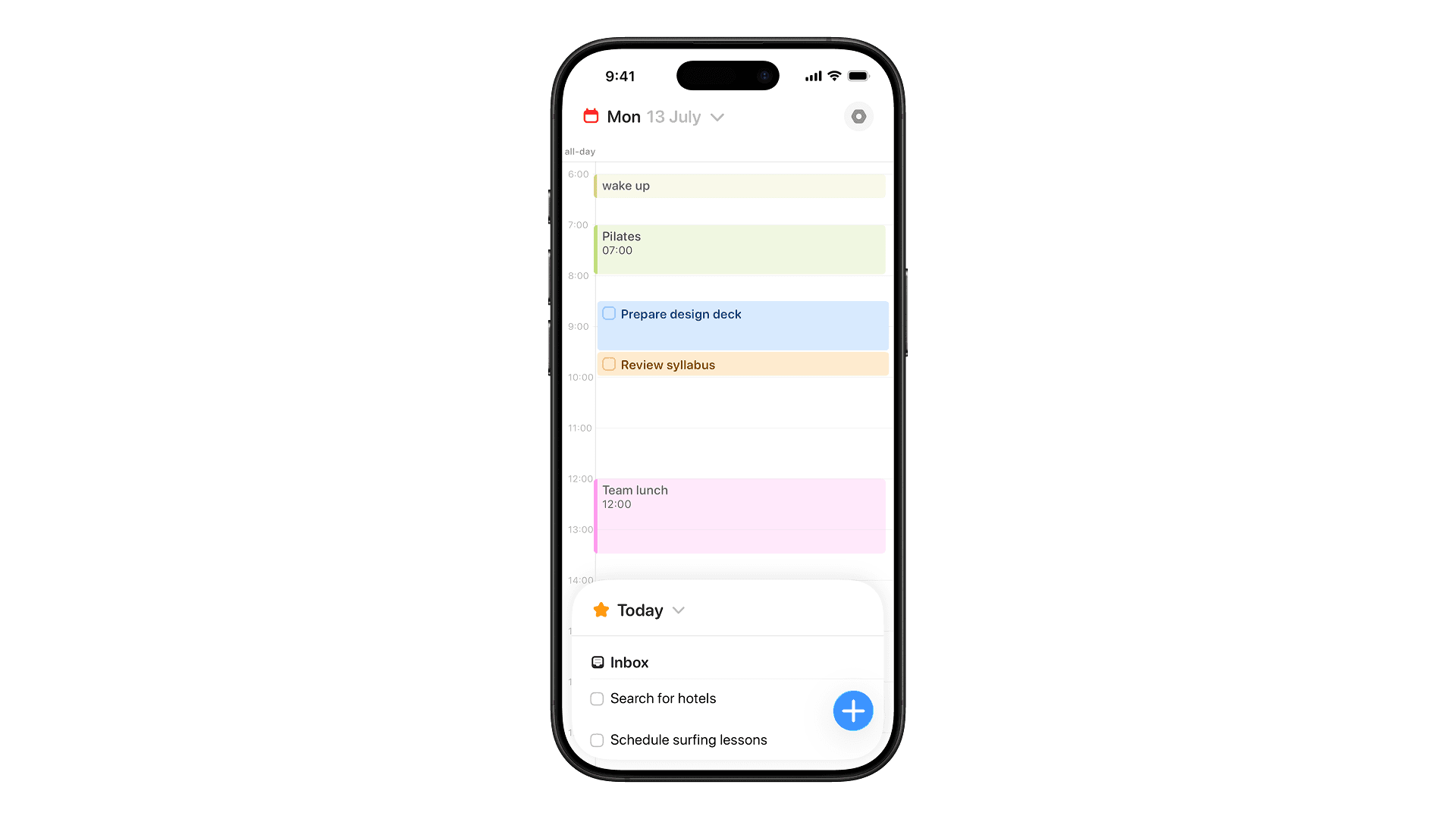
Choose Flick if: you use Apple devices, care about interface quality, and want to turn tasks into an editable schedule without handing control of the day to a messy automatic scheduler.
Look elsewhere if: you need Android or Windows access, shared team projects, or a highly automated system that continuously rebuilds your calendar.
2. Todoist: best for cross-platform work and collaboration
Todoist is practical when Things' device boundary is the problem. It works across major desktop, mobile, and web platforms and supports shared projects, assigned tasks, comments, labels, filters, and integrations.
Its calendar layouts make it possible to give a task a date, time, and duration, then move or resize it on the schedule. That is a more direct time-blocking workflow than Things provides. Availability of layouts and some calendar capabilities can depend on the plan and platform, so test the exact view you expect to use.
Choose Todoist if: you need your task system on nearly every platform or need lightweight team collaboration.
Look elsewhere if: your priority is an Apple-native-feeling personal planner with the task list and full calendar as one central workspace.
3. TickTick: best all-in-one alternative
TickTick combines tasks, recurring reminders, calendar views, habits, a Pomodoro timer, an Eisenhower Matrix, statistics, filters, and collaboration features. It is a compelling value for someone who would otherwise assemble several separate productivity apps.
Its calendar can show tasks in time, while list, Kanban, and timeline views offer other ways to organize work. Voice and natural-language entry help with quick capture.
The trade-off is focus. Things earns loyalty partly because it makes strong product decisions on the user's behalf. TickTick exposes more modes and controls. That is an advantage if you will use them and possible friction if you will not.
Choose TickTick if: you want calendar planning, habits, and focus tools in one cross-platform subscription.
Look elsewhere if: visual restraint and a very opinionated workflow matter more than feature breadth.
4. OmniFocus: best for a detailed personal system
OmniFocus models complex personal responsibilities through projects, folders, tags, flags, defer and due dates, custom perspectives, Forecast, Review, and automation.
Its Forecast view places dated tasks alongside calendar events, which helps you see commitments in context. However, OmniFocus is primarily a powerful task-management system, not the simplest way to drag a task onto a visual day and resize it as a calendar block.
Choose OmniFocus if: you use Apple devices and want reviews, custom perspectives, automation, and deep task metadata.
Look elsewhere if: you want to open the app and build a visual day with minimal setup.
5. Structured: best for a visual daily timeline
Structured compresses tasks and events into a friendly timeline. It shows what comes next, how long it lasts, and where a routine belongs. Weekly and monthly views add a broader horizon.
Calendar import is a Structured Pro feature. Its help center also documents differences between platforms: for example, some features are available on iOS and Android but not the web, while others remain iOS-only.
Compared with Things, Structured shifts attention away from projects and areas toward the shape and sequence of the day. That can be exactly right for routines and daily follow-through.
Choose Structured if: a visual timeline makes the day easier to understand and you do not need a highly developed project system.
Look elsewhere if: you want deeper project planning, manual calendar time blocking across a full workweek, or consistent access to every feature on every platform.
Which Things 3 alternative should you choose?
Use the reason you are leaving as the decision rule:
If you love Things' polish but want tasks to become calendar blocks, try Flick.
If you need Windows, Android, the web, or shared projects, try Todoist.
If you want habits, focus timers, calendar views, and tasks in one place, try TickTick.
If you want a deeply configurable private system on Apple devices, try OmniFocus.
If you want a simple timeline for routines and daily activities, try Structured.
If none of those gaps affects you, stay with Things 3. Switching tools without a concrete problem usually creates work rather than removing it.
Test each finalist with one project, one recurring responsibility, one deadline, three events, and too much work for the day. Choose the app that makes the conflict and trade-off clearest.
For a wider market view, see our comparison of the best task and calendar apps in 2026.
How Flick helps when Things' calendar view is not enough
Flick fills the gap between a good task list and a believable day. Keep unscheduled work in the task tray beside real commitments, then drag only the tasks you intend to protect into movable, resizable blocks.
If that is the missing piece in your Things workflow, try Flick with one real workweek. There is no need to migrate everything first: start with one project and compare how clearly each app answers “when will this get done?”